Calling Profile Provisioning Templates
Calling Profile Provisioning templates allow you to apply Calling Profile Templates when applying license (see Creating OC Essential Customer), adding OC SIP Connections (see Managing Operator Connect SIP Connections), uploading numbers (see Uploading Operator Connect Numbers) and releasing numbers (see Operator Connect Number Management). When Operator Connect services are onboarded with Advanced configuration, an IP Group is added for each SIP connection. You can then assign each Calling Profile Provisioning template to a different IP Group. For instance, you might want to configure an IP Group with enhanced security settings based on the site location's topology requirements and map it to a Calling Profile tailored for a specific carrier.
| ➢ | Do the following: |
| 1. | In the Navigation pane, select Configuration > Calling Profile Templates. |

The table below describes the parameters in this page.
|
Parameter |
Description |
|---|---|
|
ID |
The ID of the template in the Live Platform database. |
|
Template Name |
Name of the Calling Profile Provisioning template. |
|
Template Description |
Description of the Calling Profile template. |
|
Calling Profiles |
The Calling Profiles that are attached to the template (see Managing Calling Profiles). |
|
SBC Onboarding Script |
The SBC Onboarding script that is applied to the template. |
|
SBC Cleanup Script |
The SBC Cleanup script that is applied to the template. |
|
Upload Number Script |
The Operator Connect Upload Number script that is applied to the template. |
|
Release Number Script |
The Operator Connect Release Number script that is applied to the template. |
|
SIP Connection Type |
Indicates whether the service is an IP Group-based or Tenant ID-based SIP Connection. |
| 2. | Click Add new record to add a new record. |
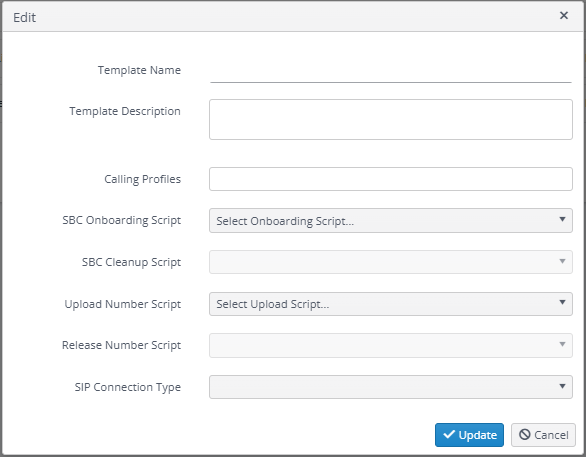
| 3. | Configure parameters according to table below and then click Update. |
|
Parameter |
Description |
|||||||||||||||||||||||||||||||||
|---|---|---|---|---|---|---|---|---|---|---|---|---|---|---|---|---|---|---|---|---|---|---|---|---|---|---|---|---|---|---|---|---|---|---|
|
Template Name |
Name of the Calling Profile Provisioning template. |
|||||||||||||||||||||||||||||||||
|
Template Description |
Description of the Calling Profile template. |
|||||||||||||||||||||||||||||||||
|
Calling Profiles |
The Calling Profiles that are attached to the template (see Managing Calling Profiles). Click inside the field and left-click to select the desired profiles. To configure more than one Calling Profile, configure parameter 'CallingProfileTemplate.AllowMultipleMsCallingProfiles' in the SysAdminTenant].[dbo].[ApplicationSetting file. |
|||||||||||||||||||||||||||||||||
|
SBC Onboarding Script |
From the drop-down list, choose the SBC Onboarding script to apply to the template:
For more information, see Operator Connect Scripts. |
|||||||||||||||||||||||||||||||||
|
SBC Cleanup Script |
From the drop-down list, choose the SBC Cleanup script to apply to the template |
|||||||||||||||||||||||||||||||||
|
Upload Number Script |
From the drop-down list, choose the Upload Number script to apply to the template to apply to the template (see Operator Connect Scripts). |
|||||||||||||||||||||||||||||||||
|
Release Number Script |
From the drop-down list, choose the Release Number script to apply to the template (see Operator Connect Scripts). |
|||||||||||||||||||||||||||||||||
|
SIP Connection Type |
Indicates whether the attached SIP Connection is IP-Group based or Tenant ID-based. From the drop-down list, choose the relevant type. To configure this parameter, configure parameter 'CallingProfileTemplate.AllowOvocCustomerTypeSelection' in the SysAdminTenant].[dbo].[ApplicationSetting file. |